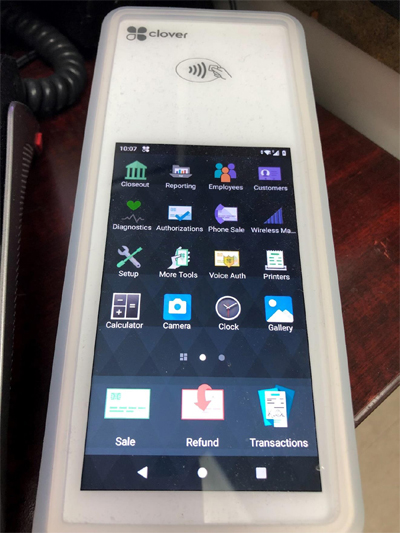
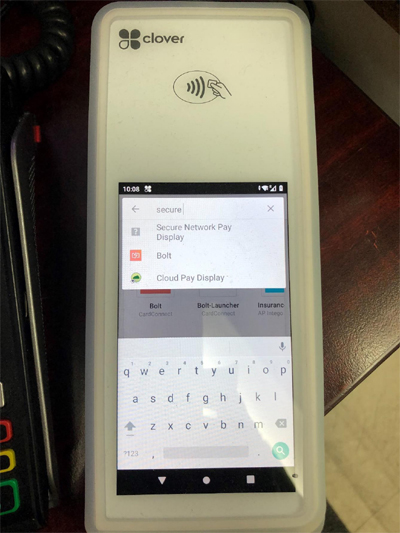
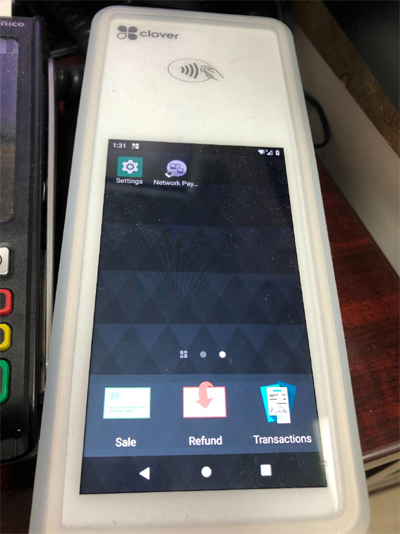
Connect, download and install this application
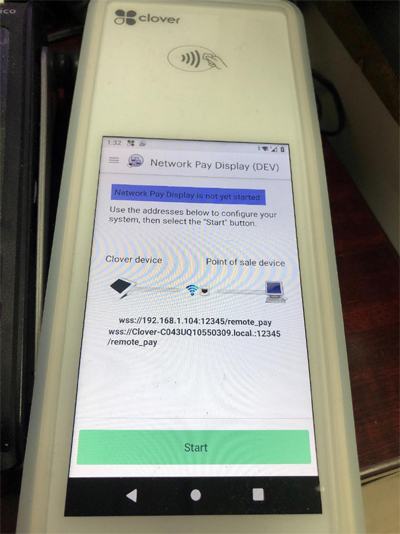
After install, open this app and find the IP address and port number
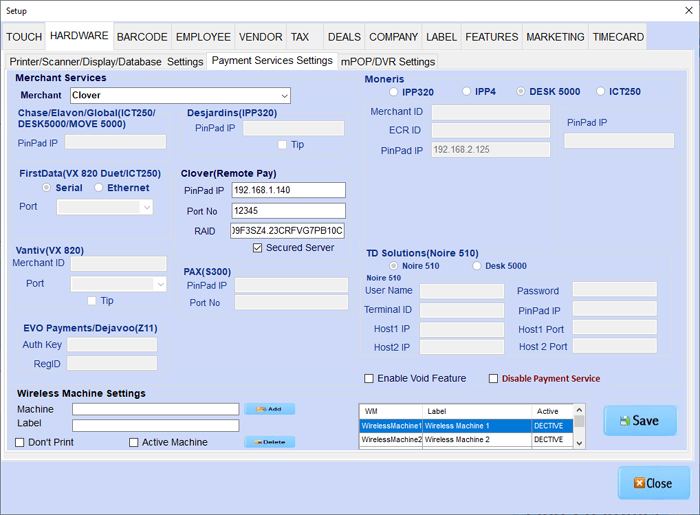
Put that IP address and port number in POS system
RAID for RangerPOS is 1C5X9409F3SZ4.23CRFVG7PB10C
Tick secured Server
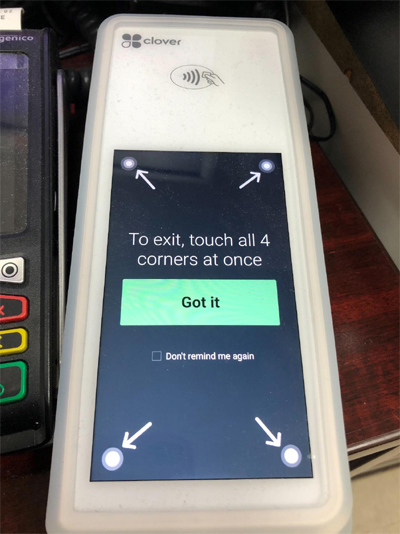
Click Start button in Clover Device., Then press Got it
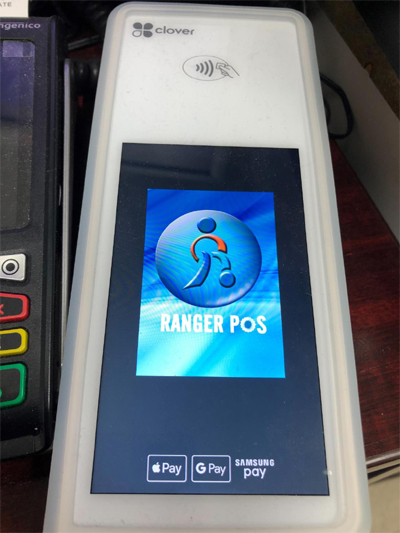
In Clover terminal will show the Company logo or name. Then is converted to Semi Integration
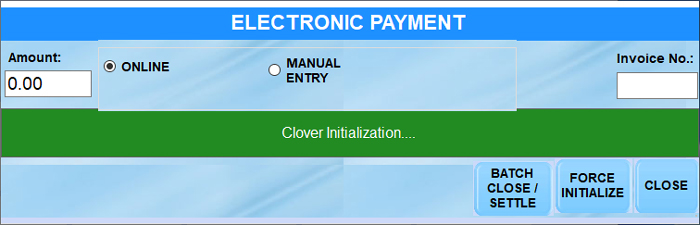
After entering the details in POS system, exit from POS system. The start POS again, then it will display
Clover initialization screen as below picture
Press Close button and exit from the POS system
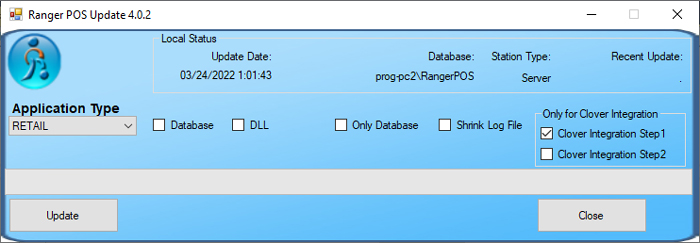
Open RangerUpdate and tick only Clover Integration Step1 and click Update
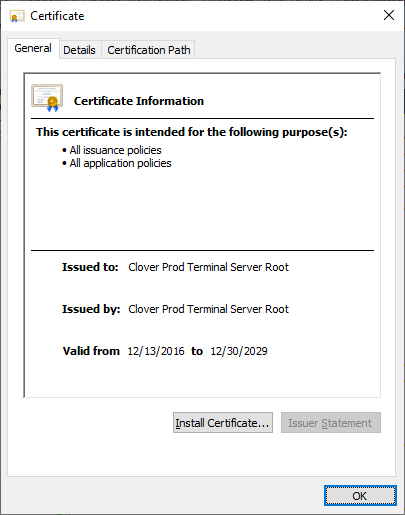
Then it will prompt for Certificate
Click Install Certificate
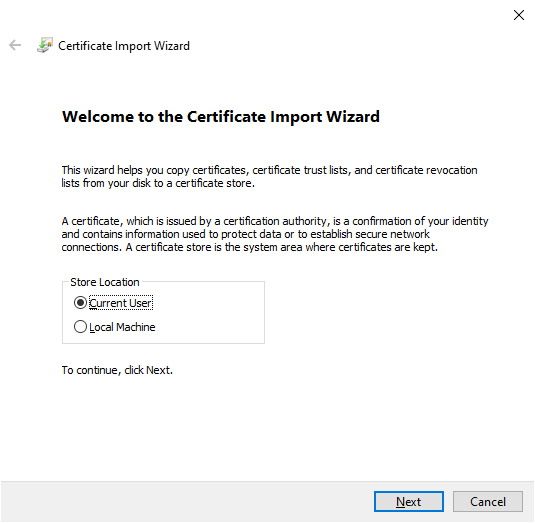
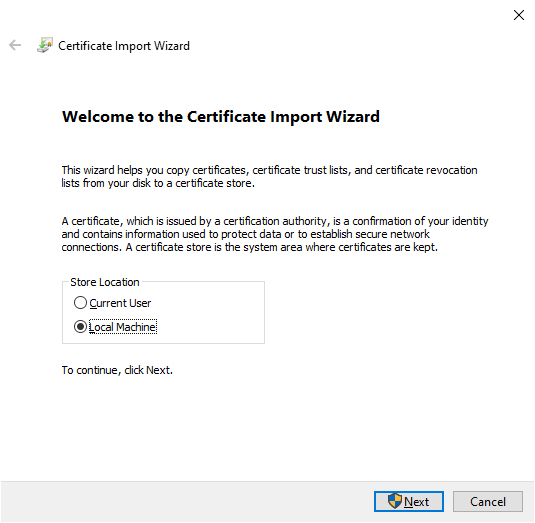
Select Current User, click Next
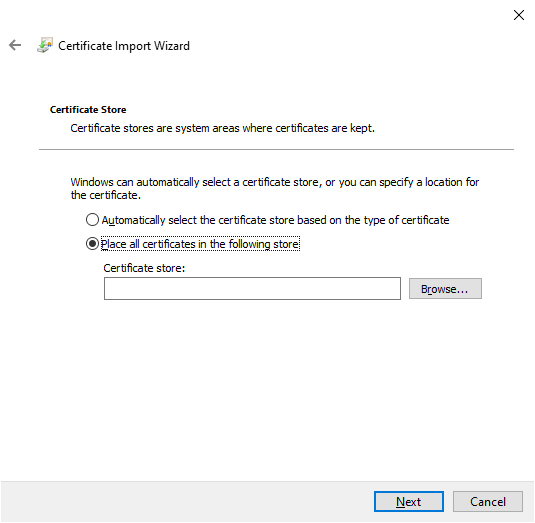
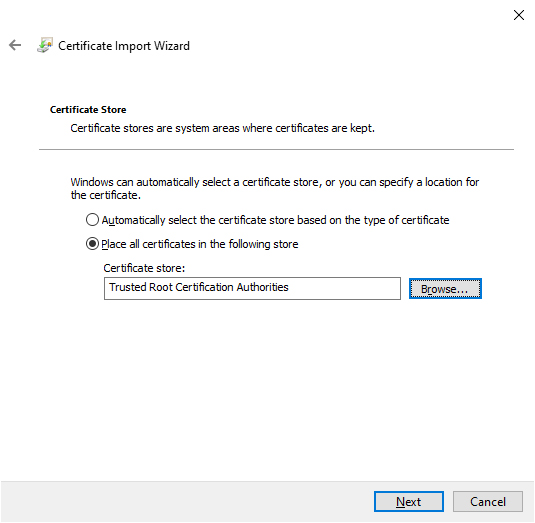
Here select option Place all certificates in the following store, then browse
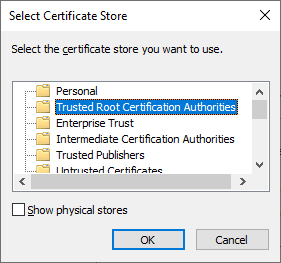
Select Trusted Root Certification Authorities (This is very important), click OK
Click Next
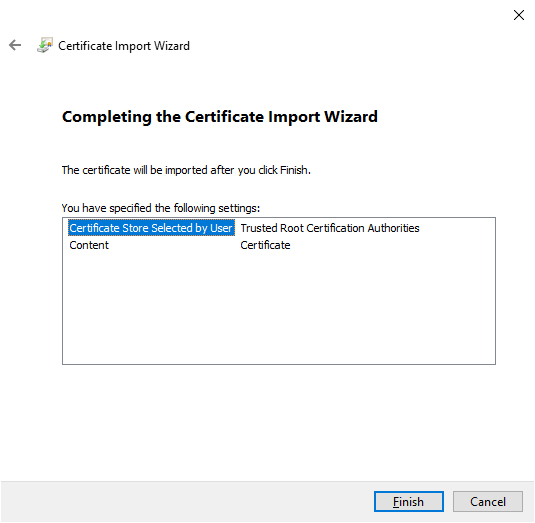
Click Finish
Then Install again with Local Machine and follow the same steps as before
After this click OK for this certificate.
Again Other certificate will prompt and do install for local user and local machine too.
After update, open the POS again it will display Clover initialization again. Click close button and exit from POS
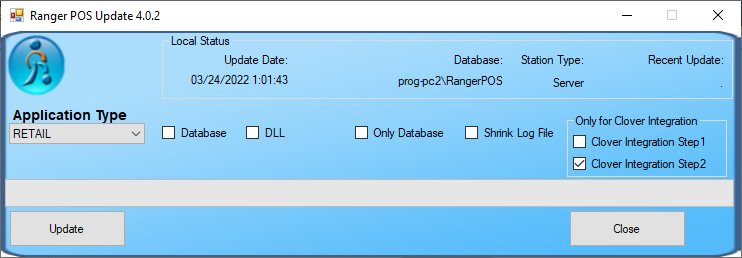
Open RangerUpdate and tick only Clover Integration Step2 and click Update
After update, open the POS again it will display Clover initialization again.
Check in the Clover terminal, it will prompt for manager password
Enter the manager password , then it will prompt for pairing code
You can find pairing code from the POS clover initialization screen
Enter that pairing code in the Clover terminal, then in Clover terminal will show a message ‘ client connected, name: RangerPOS’
Now integration is completed
Try to do one transaction in POS and check is everything is working